AI
How to use Claude Code for Jira - Complete integration guide
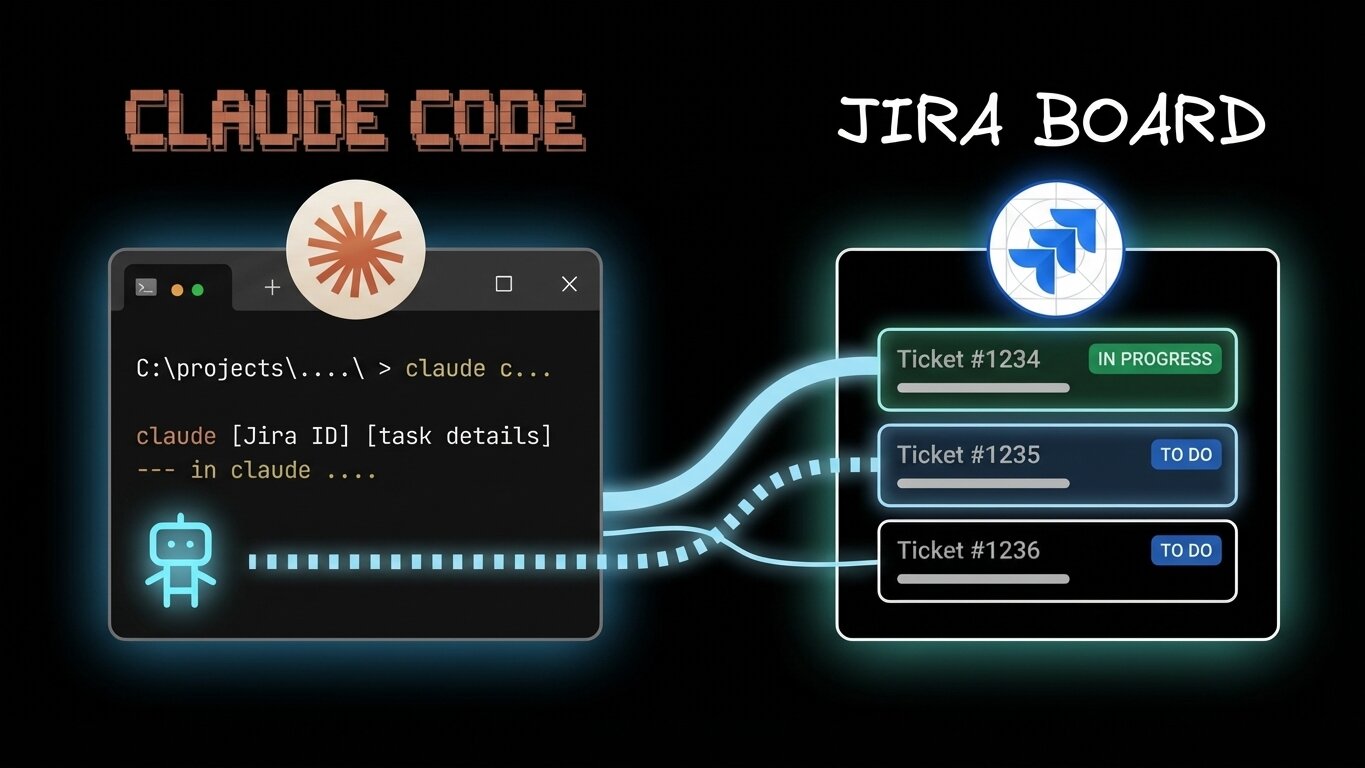


Every time you need to check a Jira ticket, you're breaking your flow. Browser tab. Search for the issue. Read the requirements. Copy the acceptance criteria. Back to your IDE. Context switch complete - and you've just lost 15 minutes of deep work.
There are two ways to fix this.
You can wire up Claude Code to Jira via the Atlassian MCP server (what this guide covers in full), or you can skip the MCP setup entirely — see what Builder 2.0 changed about Jira + AI workflows, where the Atlassian MCP is built in and tickets trigger agent runs automatically.
This guide shows you how to connect Claude Code directly to Jira using the official Atlassian Rovo MCP server. We'll use API token authentication, which is stable and doesn't require re-authentication mid-session. The older OAuth/SSE approach is also covered briefly, but it's no longer recommended for daily Claude Code use — and the SSE endpoint itself is being retired after June 30, 2026.
You'll learn how to query tickets, create issues, and update statuses without ever leaving your terminal. More importantly, we'll walk through the exact workflow step-by-step, not just the setup. You'll also learn how to do the same workflow with Builder instead of Claude Code.
What is Claude Code?
Claude Code is Anthropic's command-line AI coding assistant that runs in your terminal with full codebase access. The Model Context Protocol (MCP) is what makes the Jira integration possible - it's an open standard that connects Claude to external tools and APIs.
For Jira specifically, the MCP server lets Claude query tickets, create issues, add comments, and transition statuses through natural language - all without leaving your terminal.

Setting up Claude Code with the Atlassian Rovo MCP server
This tutorial uses the official Atlassian Rovo MCP server with API token authentication - the stable, recommended approach that doesn't disconnect mid-session. OAuth 2.1 is still available for interactive scenarios, but API tokens are better for command-line workflows.
Step 1: Install Claude Code
If you're new to Claude Code, read our complete setup guide first. For Jira integration specifically:
Install Claude Code:
Verify installation:
You'll need an Anthropic API key. Get one at console.anthropic.com.
Set your API key:
Add this to your ~/.bashrc or ~/.zshrc to persist across sessions.
Step 2: Create an Atlassian API token
Before connecting Claude Code, you need an API token for authentication.
Create your personal API token:
- Visit https://id.atlassian.com/manage-profile/security/api-tokens
- Click Create API token
- Give it a label (e.g., "Claude Code MCP")
- The system will show you the token - copy it immediately (you won't see it again)
- If your organization requires specific scopes, click Back and manually select scopes
Base64-encode your credentials:
You need to encode your email and API token together. Run this command (replace with your actual email and token):
Save the output - you'll use it in the next step.
Important: Your organization admin must enable API token authentication in the Atlassian Rovo MCP server settings. If it's disabled, you'll need to use OAuth 2.1 instead (covered later in troubleshooting).
Step 3: Add the Atlassian Rovo MCP server to Claude
Now configure Claude Code to use the Atlassian Rovo MCP server with your API token.
Using the new HTTP endpoint (recommended, stable):
Create or edit your Claude MCP configuration file:
- Mac/Linux:
~/.config/claude/mcp.json - Windows:
C:\Users\[username]\AppData\Roaming\Claude\mcp.json
Add this configuration:
Replace YOUR_BASE64_ENCODED_CREDENTIALS with the base64 string you created in Step 2.
What this does:
- Connects to Atlassian's hosted Rovo MCP server at the new
/mcpendpoint - Authenticates using your API token (no browser-based OAuth flow needed)
- Registers Jira, Confluence, and Compass tools
- Stores configuration persistently - no re-authentication required
Important: The older /sse endpoint (https://mcp.atlassian.com/v1/sse) is deprecated and will stop working after June 30, 2026. Always use /mcp for new setups.
Step 4: Verify the connection
Start Claude Code:
Ask Claude to list your Jira projects:
If authentication succeeded, you'll see your Jira projects listed with their keys and names.
If you get an error, the most common issues are:
- "Unauthorized": Your API token may be incorrect, or API token authentication may be disabled by your org admin
- "Tool not found": The MCP server configuration wasn't loaded properly. Check your
mcp.jsonsyntax - Connection issues: Verify your organization's IP allowlisting settings if you use them
The API token approach doesn't have the session disconnection issues that plagued the old OAuth/SSE method - once configured, it works consistently.
We'll cover troubleshooting in depth later.
Understanding Claude Code's Jira workflow
Before diving into examples, let's understand how Claude actually uses Jira tools. This is critical for writing effective prompts.
How MCP tools work
The interface is conversation itself - you don't interact with these tools through commands, menus, or special syntax; you simply talk to Claude the way you would talk to a knowledgeable colleague who has access to your systems.
When you ask Claude to interact with Jira, here's what happens:
- You send a natural language request: "Create a bug ticket for the login issue"
- Claude interprets your intent: Identifies that you need the
create_issueJira tool - Claude gathers required parameters: Project key, issue type, summary, description
- Claude may ask clarifying questions: "Which project should I create this in?"
- Claude calls the Jira API: Via the MCP server
- Claude returns formatted results: With the ticket number and URL
You never see the API calls - just the conversation.
Behind the scenes:

Available Jira tools
The Atlassian MCP server provides these core tools:
search_issues- Find issues using JQL or natural language filterscreate_issue- Create new tickets (bugs, tasks, stories)update_issue- Modify existing issuesadd_comment- Add comments to ticketstransition_issue- Move issues through workflow states (To Do → In Progress → Done)get_issue- Fetch full details for a specific issueget_project- Get project metadata and configuration
Tool Categories:

Example workflow:
search_issues→ Find "login bugs"get_issue→ Read ENG-123 detailsadd_comment→ "Working on fix"transition_issue→ "To Do" → "In Progress"- Code implementation...
add_comment→ "Ready for review"transition_issue→ "In Progress" → "In Review"
MCP servers can expose resources that you can reference using @ mentions - type @ in your prompt to see available resources from all connected MCP servers, and resources appear alongside files in the autocomplete menu.
Writing effective Jira prompts
The key insight: Be specific about context, but let Claude handle the API details.
Good prompts:
- "Create a high-priority bug in project ENG for the login timeout issue. Users are getting logged out after 5 minutes instead of 30."
- "Show me all unresolved issues assigned to me in the current sprint"
- "Add a comment to ENG-123 with the test results from the last run"
Bad prompts:
- "Create a ticket" (Missing: which project? What type? What's it about?)
- "Fix the bug" (Claude doesn't know which bug)
- "Update status" (Which issue? What status?)
Claude can infer some details from context, but explicit project keys, issue numbers, and descriptions save time.
Prompt Quality Comparison:
Key Principle: Be specific about what (action), where (project/ticket), and why (context). Let Claude handle the how (API details).
Step-by-step: Implementing a feature from a Jira ticket
Let's walk through a real workflow: taking a Jira ticket and implementing it using Claude Code.
End-to-End Workflow:

Scenario
You're assigned ticket ENG-456: "Add rate limiting to login endpoint". Your task is to understand the requirements, implement the feature, write tests, and update the ticket.
Step 1: Fetch the ticket details
Start Claude in your project directory:
Ask Claude to pull the ticket:
Claude uses the get_issue tool and returns:
Claude now has full context. You didn't need to open a browser.
Step 2: Plan the implementation
Ask Claude to create a plan:
Claude reads your codebase and responds:
Notice: Claude read your existing code structure and suggested a plan that fits your project.
Step 3: Implement the feature
Approve the plan:
Claude implements the changes:
- Installs
express-rate-limitdependency - Creates
src/middleware/rateLimiter.tswith 15-minute window, 5-attempt limit - Updates
src/routes/auth.tsto apply middleware to login route - Adds integration tests covering:
Step 4: Run tests
Ask Claude to run the test suite:
Claude executes:
If tests pass:
If tests fail, Claude debugs automatically by reading error output and adjusting the implementation.
Step 5: Update the Jira ticket
Now that the feature is complete, update the ticket:
Claude makes two API calls:
- Adds comment (via
add_commenttool) - Transitions status (via
transition_issuetool)
Response:
The entire workflow - reading the ticket, implementing the feature, testing, and updating Jira - happened without leaving your terminal.
Advanced Jira workflows with Claude Code
Once you've mastered the basics, here are more advanced patterns.
Advanced Pattern Library:

Creating tickets from code context
You found a bug while coding:
Claude creates the ticket with all context included, formatted properly for your team.
Sprint planning assistance
Claude uses search_issues with JQL filters to return a formatted report - perfect for standup meetings.
Linking commits to tickets
After committing code:
Claude formats the comment with proper links, maintaining your team's documentation standards.
Batch operations
Claude processes the query and returns actionable data for backlog grooming.
Troubleshooting the Atlassian Rovo MCP connection
The API token authentication method is stable and reliable. Here's how to handle common setup and connection issues.
Jira MCP Troubleshooting Decision Tree:

Issue 1: "Unauthorized" or authentication failures
Symptoms: Claude can't connect to the Atlassian Rovo MCP server, or you get "Unauthorized" errors.
Check these first:
1. Verify API token authentication is enabled
Your organization admin must enable API token authentication in Atlassian settings:
- Go to Atlassian Administration
- Select Apps > AI settings > Rovo MCP server
- In the Authentication section, ensure API token is turned on
If it's disabled, you'll need to either ask your admin to enable it or use OAuth 2.1 authentication instead (see Issue 5 below).
2. Verify your base64 encoding
Re-encode your credentials to ensure they're correct:
The -n flag is critical - it prevents a newline character that would break authentication.
3. Check your mcp.json configuration
Ensure your configuration file has the correct format:
Common mistakes:
- Missing
Basicprefix in the Authorization header - Extra spaces or newlines in the base64 string
- Using the old
/sseendpoint instead of/mcp
4. Verify API token scopes
When creating your API token, you may need to manually select scopes if your organization restricts them. Go back in the token creation flow and ensure you've granted access to:
- Jira (read/write as needed)
- Confluence (read/write as needed)
- Compass (if you use it)
Issue 2: Configuration file not loading
Symptoms: Claude doesn't show Atlassian tools, or mcp.json changes don't take effect.
Fixes:
- Verify file location:
- Mac/Linux:
~/.config/claude/mcp.json - Windows:
C:\Users\[username]\AppData\Roaming\Claude\mcp.json
- Mac/Linux:
- Check JSON syntax: Use a JSON validator to ensure your configuration is valid. Common mistakes:
- Missing commas between entries
- Extra trailing commas
- Unmatched braces or quotes
- Restart Claude Code: Configuration changes only load when Claude starts:
Issue 3: IP allowlisting blocks connection
Symptoms: Authentication works, but tool calls fail with permission errors.
Fix:
If your organization uses IP allowlisting for Atlassian Cloud products, MCP server requests must come from allowed IP addresses.
For organization admins:
- Go to Atlassian Administration
- Check Security > IP allowlist settings
- Ensure the IP addresses where Claude Code runs are allowed
For users: If you're working from a new location (home, coffee shop, etc.) and suddenly can't access Jira through Claude, your IP may not be allowlisted. Contact your admin to add it.
Important: IP allowlisting applies to both OAuth 2.1 and API token authentication methods.
Issue 4: Slow responses or timeouts
Symptoms: Jira queries take 20+ seconds or timeout completely.
Fixes:
- Increase MCP timeout:
- Be more specific in queries - avoid broad searches:
- Check Jira API rate limits - your organization may have rate limiting enabled
Issue 5: Using OAuth 2.1 when API tokens aren't available
When to use this: Your organization admin has disabled API token authentication, or you prefer interactive OAuth flows.
Important: The old /sse endpoint is deprecated and will stop working after June 30, 2026. If you must use OAuth, use the /mcp endpoint with mcp-remote proxy.
Setup with OAuth 2.1:
- Install mcp-remote (Node.js proxy for OAuth):
- Follow the OAuth flow: The tool will open your browser for authentication
- Keep the session running: OAuth tokens are session-based and may expire
Configuration for Claude Desktop (if using the desktop app):
Limitations of OAuth 2.1:
- Tokens may expire during long sessions, requiring re-authentication
- Requires browser access for the OAuth flow
- Less suitable for headless/automated workflows
- The older SSE transport is being retired
Recommendation: If possible, ask your admin to enable API token authentication for a more stable experience.
Tired of re-authenticating every two hours?
Builder Fusion has the Atlassian MCP built in — no API tokens to base64-encode, no SSE timeouts, no
mcp.jsonto debug. Assign a Jira ticket and the agent picks it up. See how Fusion handles Jira →
The alternative: Builder.io Fusion with built-in Jira MCP
If you've made it this far in the troubleshooting section, you already know the cost of running Claude Code against Jira: token encoding, scope juggling, SSE retirement, OAuth re-auth loops. Builder 2.0 rebuilt this workflow around the Atlassian MCP being built in by default, so the entire setup section above doesn't apply.
What is Builder.io?
Fusion lets you start builds where work happens: assign a Jira ticket and the agent picks it up, get progress updates as it works, then jump into Fusion to review and ship through your existing pipeline.
For a Jira-first developer, the differences that matter most:
- Built-in Atlassian MCP - Zero config, no API tokens, no SSE retirement to worry about
- Ticket-triggered agent runs - Assign a Jira ticket to Builder and the work starts; you don't have to open anything
- No re-auth loops - Persistent connection, no mid-session disconnects
And if you do want the visual side:
- Visual IDE - See changes rendered in real-time as AI codes
- Team collaboration - Multiple roles (PM, designer, developer) in one workspace
- Direct GitHub integration - Creates PRs, manages branches
- Figma plugin - Import designs directly into code
How Builder's Jira integration works
Once connected, the AI automatically leverages these services when relevant to your tasks, with MCP servers enhancing Projects capabilities in the background - for example, when working on a development task, Projects can automatically access related Jira tickets, understand the requirements, and even implement fixes based on the ticket context.
The workflow is simpler than Claude Code:
- Connect Jira - One-click OAuth in Fusion settings, no CLI commands
- Assign a ticket - Jira ticket assigned to you appears in Fusion
- AI implements - Fusion AI reads the ticket and builds the feature
- Visual review - See the implementation rendered live
- Create PR - One-click pull request creation
Key difference: Builder Agent integrates with Slack and JIRA, so you can trigger work directly from Jira without even opening Fusion.
Builder vs Claude Code: when to use which
Use Claude Code when:
- You prefer terminal-only workflows
- You want complete control over every file change
- Your team isn't collaborating on the same feature simultaneously
- You're comfortable with configuration files and command-line tools
Use Builder.io when:
- You want visual feedback as code is written
- Multiple team members need to collaborate (PM, designer, dev)
- You're building UI-heavy features
- You prefer GUI-based setup over configuration files
- You need Figma-to-code workflows
Best of both worlds: Use Claude Code for backend/API work and Fusion for frontend features with Jira tickets.
Comparison: Claude Code vs Builder.io Fusion
Recommendation: Use Claude Code for backend work where visual feedback isn't critical. Use Fusion for frontend features where you want to see rendered output and collaborate with non-technical team members.
Pricing and availability
Fusion's Team plan includes the Builder Agent in Slack and JIRA, custom MCP servers, and built-in MCP servers. The Free tier supports basic GitHub integration, and Pro tier adds pay-as-you-go usage.
For teams already using Jira extensively, the Team plan provides a visual, collaborative workspace that bridges product, design, and engineering in one platform.
Best practices for Claude Code + Jira
Regardless of whether you use Claude Code standalone or Builder.io Fusion, these patterns improve your workflow.
1. Use project keys consistently
Claude works better when you're explicit:
2. Reference ticket numbers in commits
Even when using Claude to update tickets, maintain the habit:
This creates an audit trail outside of Jira.
3. Let Claude translate JQL
Don't try to write Jira Query Language yourself:
Claude translates natural language to JQL automatically.
4. Create ticket templates
For recurring ticket types, give Claude a template:
Claude remembers this within the session (or use Claude's persistent memory features for cross-session templates).
5. Combine code analysis with tickets
The most powerful pattern is connecting code and tickets:
Claude reads both the code and the ticket, then reports on gaps.
Frequently Asked Questions: How to Use Claude Code for Jira
What is Claude Code and how does it connect to Jira?
Claude Code is Anthropic's command-line AI coding assistant that runs in your terminal with full access to your codebase. It connects to Jira through the Model Context Protocol (MCP) — an open standard that lets Claude communicate with external tools and APIs using natural language. Once the Atlassian MCP server is configured, Claude can query tickets, create issues, add comments, and transition statuses through conversation, without you ever opening a browser tab or switching context out of your terminal.
What Jira actions can Claude actually perform through MCP?
The Atlassian MCP server exposes six core tools: searching issues via JQL or natural language, creating new tickets (bugs, tasks, stories), updating existing issues, adding comments, transitioning issues through workflow states (To Do → In Progress → In Review → Done), and fetching full details for a specific issue. That covers the vast majority of what a developer needs to manage their work queue during a coding session — all without leaving the terminal.
What's the fastest way to set up the Atlassian MCP server in Claude Code?
Install Claude Code via npm install -g @anthropic-ai/claude-code, then run:
Start Claude with claude, type /mcp to verify the server loaded, and complete the OAuth flow when prompted. The first authentication opens a browser window — complete it there, then return to your terminal. After that, you can start querying Jira immediately.
Why does the Atlassian MCP keep disconnecting and asking me to re-authenticate?
This is a widely reported issue. The Atlassian MCP server uses short-lived OAuth tokens that Claude Code can't refresh, so it works for a bit and then fails — and often gets stuck in a permanently failed state. Atlassian Community Multiple teams report having to re-authenticate every one to four hours. The root cause is architectural: the SSE-based OAuth flow was designed for interactive browser sessions, not persistent terminal connections.
Is there a more stable alternative to the OAuth/SSE authentication approach?
Yes, and this is the most important recent update to the setup described in this article. Atlassian has now announced API token authentication for the Atlassian Rovo MCP Server — a new way to connect without an interactive consent screen, designed specifically for machine-to-machine and automated use cases. Atlassian Community Instead of the OAuth browser flow, you generate a personal API token from your Atlassian account security settings and pass it as a Basic Auth header. This is the preferred approach for terminal-based tools like Claude Code where a human can't keep clicking through OAuth prompts. The new endpoint to use is https://mcp.atlassian.com/v1/mcp (not the old /v1/sse).
Is the old SSE endpoint being retired?
Yes. After June 30, 2026, usage of https://mcp.atlassian.com/v1/sse as a server endpoint will no longer be supported. Atlassian recommends updating any configured custom clients to point to /mcp: https://mcp.atlassian.com/v1/mcp. Atlassian Support If you set up your integration using the SSE URL described in older guides — including the one this article was based on — you should migrate to the new endpoint and switch to API token authentication before that deadline.
What happened to the Jira REST API search endpoint, and does it affect MCP?
It matters if you're running a self-hosted or community MCP server. The old search endpoint /rest/api/3/search was deprecated and traffic to it was blocked after October 31, 2025. The updated endpoint is /rest/api/3/search/jql. GitHub The official Atlassian Rovo MCP server handles this transparently, but community-built MCP servers may need to be updated if they haven't migrated yet. If you're seeing unexpected search failures on a self-hosted setup, this is the likely cause.
What's the acli workaround, and when should I use it?
The acli (Atlassian CLI) approach replaces the MCP server entirely with a locally authenticated command-line tool. You install it, authenticate once via acli auth login, and those credentials persist indefinitely without re-authentication. You then write a small wrapper shell script and give Claude instructions to use it. This approach is more stable than the MCP OAuth flow because it uses standard API authentication stored locally, not short-lived SSE tokens. It's worth considering if you're hitting frequent disconnections and the new API token MCP authentication doesn't resolve them.
What are the most common reasons the Atlassian MCP connection fails?
Three main failure modes come up repeatedly. First, "Connection closed" — the SSE connection dropped; re-run /mcp and authenticate again. Second, "Unauthorized" — the OAuth token expired; authenticate again. Third, "Tool not found" — the MCP server isn't loaded, usually because it was added to the wrong scope; verify with claude mcp list and re-add if needed. For teams on the old SSE endpoint, switching to the new /v1/mcp endpoint with API token auth resolves the first two failure modes entirely, since the tokens don't expire mid-session.
What makes a good vs. bad Jira prompt in Claude Code?
The principle is: be specific about what, where, and why — and let Claude handle the API details. Weak prompts like "create a ticket" or "show my tasks" are missing enough context that Claude either has to ask clarifying questions or make assumptions. Strong prompts include the project key, the issue number if referencing an existing ticket, the priority, and enough description of the problem that Claude can write a useful summary and description. For example: "Create a high-priority bug in project ENG for the login timeout issue. Users are being logged out after 5 minutes instead of 30. Include steps to reproduce." You also never need to write JQL yourself — just describe what you want in plain English and Claude will translate it.
How does the full end-to-end workflow actually look in practice?
The workflow the article walks through — and it genuinely works — is: start Claude in your project directory, ask it to pull a ticket by key, ask it to plan the implementation based on what it reads in your codebase, approve the plan, let it implement and run tests, then ask it to add a comment and transition the ticket status when you're done. The entire loop from reading requirements to updating Jira happens without leaving the terminal. The key insight is that Claude has simultaneous access to your codebase and your Jira instance, so it can cross-reference the acceptance criteria against the actual code it writes — something no amount of browser-tab-switching achieves.
When should I use Claude Code for Jira versus Builder.io?
Claude Code is the right choice for developers who prefer terminal-only workflows, want full control over every file change, and are primarily working on backend or API features where visual output isn't relevant. Builder.io makes more sense when you're building UI-heavy features, need multiple team roles (designers, PMs, developers) working on the same task, want to see rendered output as code is generated, or want zero-config Jira integration without managing MCP authentication. A reasonable split for many teams: Claude Code for backend work, Builder for frontend features where the visual feedback loop matters. If you want to see how Builder handles this without the MCP setup, read the Builder 2.0 announcement →
Conclusion
Having Claude Code connected to your Atlassian workspace means your AI assistant can ride shotgun and help you be more efficient - no more browser tabs, no more context switching between Jira and your IDE.
The setup is straightforward:
- Install Claude Code
- Create an Atlassian API token
- Configure the Atlassian Rovo MCP server with API token authentication
- Start using natural language to manage tickets
With API token authentication, the connection is stable - no mid-session disconnections, no repeated OAuth flows. Just configure once and you're set.
The future isn't about memorizing Jira shortcuts or mastering JQL syntax - it's about having natural conversations, and with the Atlassian Rovo MCP server in Claude Code, that future is already here.
Claude Code is a strong fit if you live in the terminal and want full control over every file change. If you'd rather not maintain an MCP config — or if your team includes PMs, designers, and devs who all need to touch the same Jira ticket — Builder Fusion ships with the Atlassian MCP built in and turns ticket assignment into agent runs. No mcp.json, no token re-encoding, no SSE retirement to plan around.
Share