Visual Copilot
Turn a Figma Dropdown Design Into Working React Code in 1 Minute
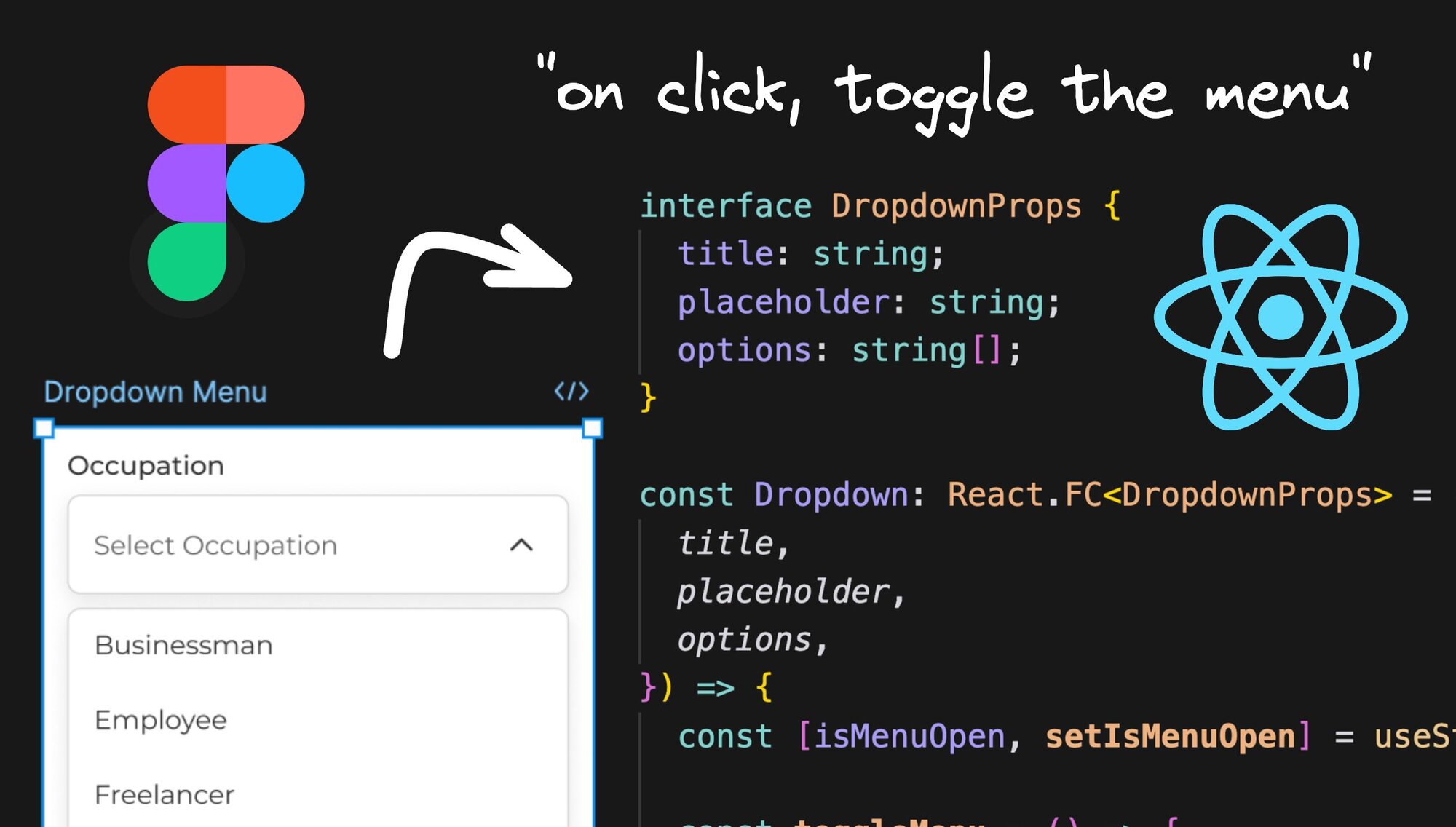


I just transformed a Figma design into working React code, complete with TypeScript and tests, in less than 1 minute.
The best part? The code is clean, customizable, and ready to integrate into your project.
Let me show you how to do it.
The Process
Step 1: Exporting Figma Dropdown Menu
First, grab your design (if using mine, be sure to duplicate it to your drafts first, so you have full edit/plugins access).
Launch the **Builder.io Figma plugin** and hit the "Export to Code" button, and you'll be launched into Builder.io.
Step 2: Adding Interactivity with AI
Once in Builder, it's time to make your design interactive. Use this prompt:
Hit enter and let the AI work its magic. It will add the interactivity for you while you sit back and relax.
Then, toggle quick preview (cmd+\ or ctrl+\) to verify that everything works as expected. You should see the menu toggle and the chevron rotate when you click the button.
Note: The Builder Visual Editor AI chat released with Visual Copilot 2.0 is currently in a rolling beta — meaning some users will have access now, and some will come soon. We add new users each week — so if you don’t have access just yet, request to be notified when your accent gets access
Step 4: Generating Production Code
When you're happy with the functionality, it's time to get the code:
- Hit the "Develop" button
- Click "Generate Code"
- Tweak any options as needed (frameworks, styling, languages, etc.)
Builder supports many frameworks, like Vue, Svelte, Solid.js, as well as native outputs like SwiftUI, Flutter, and Jetpack Compose.
You can type to chat with the code to modify it in any way you like. You can also add custom instructions to customize even futher.
Step 5: Syncing the Code to Your Project
To get the code into your project:
- Click "Sync Code"
- Copy the provided command
- Run it at the root of your project
- And there you have it - your new React component with TypeScript and tests, ready to be committed to your repository.
And there you have it - your new React component with TypeScript and tests, ready to be committed to your repository.
What's Next?
Try this out with your own designs! Remember, AI is a powerful tool that can significantly speed up your development process, but it doesn't replace the need for engineering expertise.
Use trial and error to get a good feel for what this AI is good for. Use it to accelerate your workflow and focus on the more complex aspects of your projects.
Resources
- Figma file used in this tutorial
- Builder.io Figma plugin
- Get notified when you get full Visual Copilot 2.0 access
Give it a try - I can't wait to see what you build!
Share